Down payments
A down payment is an initial up-front payment made during the confirmation of a sales transaction. With a down payment, the buyer pays a portion of the total amount owed while agreeing to pay the remaining amount at a later date. In turn, the seller provides goods or services to the buyer upon or after accepting the down payment, trusting that the remaining amount will be paid later on.
En la aplicación Ventas de Nexovate, los anticipos se pueden personalizar para cumplir con cada transacción de ventas individual.
Crear facturas
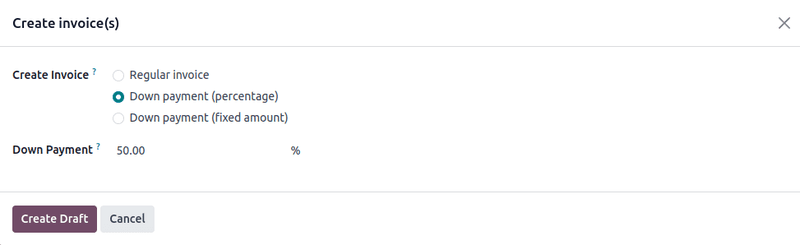
When a sales order is confirmed, the option to create an invoice becomes available via the Create Invoice button. When clicked, a Create invoice(s) pop-up appears.
Nota
Invoices are automatically created as drafts so they can be reviewed before validation.
On the Create invoice(s) pop-up, there are 3 options to choose from in the Create Invoice field:
Factura normal
Anticipo (porcentaje)
Anticipo (importe fijo)
Solicitud inicial de un anticipo
En la venta emergente Crear facturas, las opciones para anticipos son:
Anticipo (porcentaje)
Anticipo (importe fijo)
Select a down payment option and set the desired payment, either as a percentage or a fixed amount, in the Down Payment Amount field.
Ya que haya llenado los campos haga clic en el botón Crear borrador. Una vez hecho eso, Nexovate le mostrará el Borrador de la factura del cliente.
Importante
If an Invalid Operation error appears, double-check that the invoicing policy is configured correctly. In some cases, for example, the invoicing policy is configured to require delivery before sending an invoice.
In the Invoice Lines tab of the Customer Invoice Draft, the down payment that was just configured in the Create invoice(s) pop-up form appears under a new Down Payments section.
Example: requesting a 50% down payment
Nota
The following example involves a 50% amount down payment on a (Cabinet with Doors) with Ordered quantities as the Invoicing Policy.
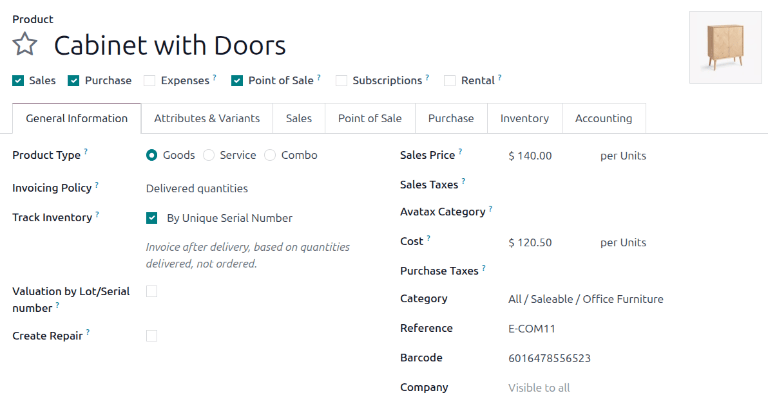
Navigate to , and add a Customer to the quotation. Then, click Add a product in the Order Lines tab, and select the Cabinet with Doors product. When the order is confirmed (via the Confirm button), the quotation turns into a sales order. Once this occurs, create and view the invoice by clicking Create Invoice.
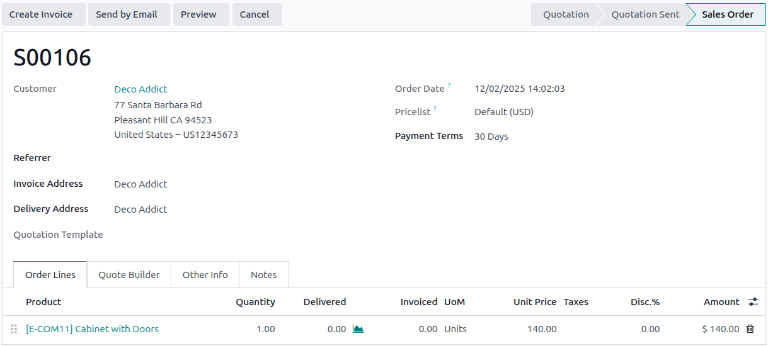
Next, on the Create invoice(s) pop-up window that appears, select Down
payment (percentage), and type 50 in the Down Payment field.
Nota
The Income Account attached to the Down payment can be changed. For more information, check out the documentation on income account modification on down payments. A Down payment Account can also be set on a product category. If set, this account is prioritized for future down payments.
Lastly, click Create Draft Invoice to create and view the invoice draft, which includes the down payment under the Down Payments section of the Invoice Lines tab. From there, the invoice can be confirmed and posted by clicking Confirm. Confirming the invoice changes the status from Draft to Posted. It also reveals a new series of buttons at the top of the page.
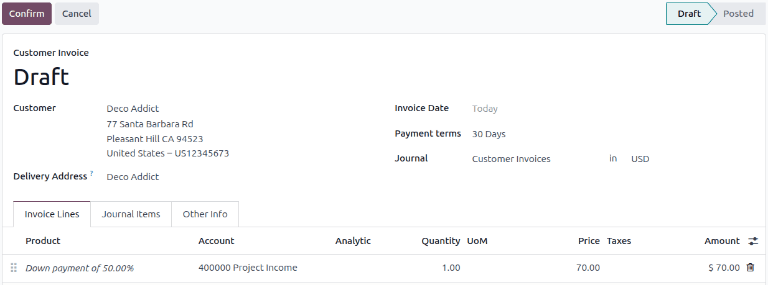
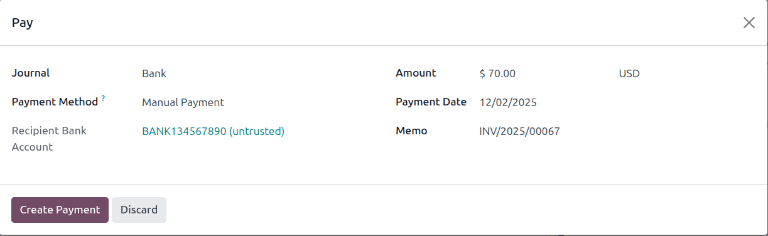
From those buttons, the payment can be registered by clicking Pay. Doing so reveals a Pay pop-up form, which is auto-populated with the necessary information. Confirm the information provided is correct, and make any necessary adjustments. When ready, click the Create Payment button.
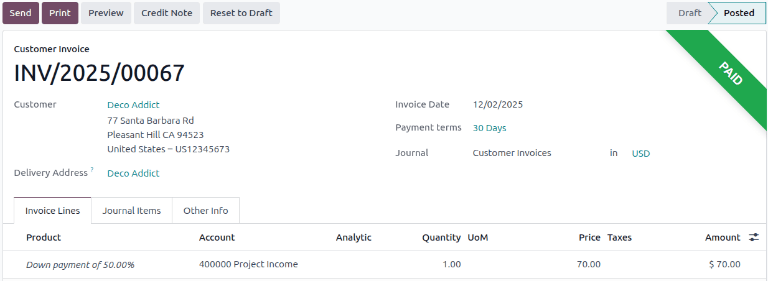
After clicking Create Payment, Nexovate reveals the customer invoice, now with a green In Payment or Paid banner in the upper-right corner, depending on how the database has configured and if manual confirmation of payments is required.
On the sales order, a new Down Payments section is present in the Order Lines tab, along with the down payment that was just invoiced and posted. When the customer wants to pay the remaining amount of the order, another invoice must be created.
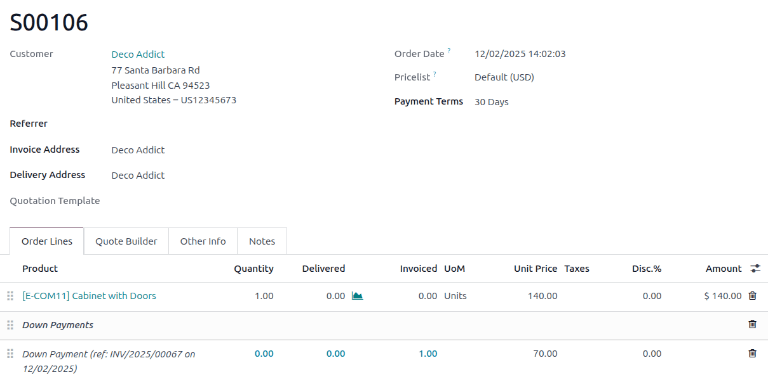
Next, click the Create Invoice button. On the Create invoice(s) pop-up window that appears, there is a new field: Already invoiced and Amount to invoice.
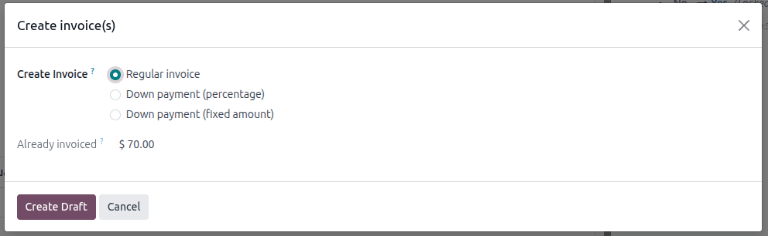
Si ya se pagará la cantidad restante, seleccione la opción Factura normal. Nexovate creará una factura por la cantidad exacta que se necesita para completar el total del pago, como se indica en el campo Cantidad por facturar.
Once ready, click Create Draft Invoice. Doing so reveals another Customer Invoice Draft page, listing all the invoices for that specific sales order in the Invoice Lines tab. Each invoice line item displays all the necessary information related to each invoice.
To complete the flow, click Confirm to change the status of the invoice from Draft to Posted. Then, click Pay. The Pay form appears, with all fields auto-populated with the necessary information, including the remaining amount left to be paid on the order.
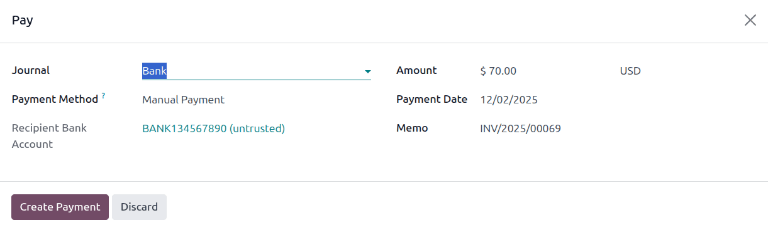
After confirming that information, click Create Payment. Doing so reveals the final Customer Invoice with a green In Payment or Paid banner in the upper-right corner, depending on how the database has configured and if manual confirmation of payments is required. Upon returning to the sales order, both down payments are present in the Order Lines tab.
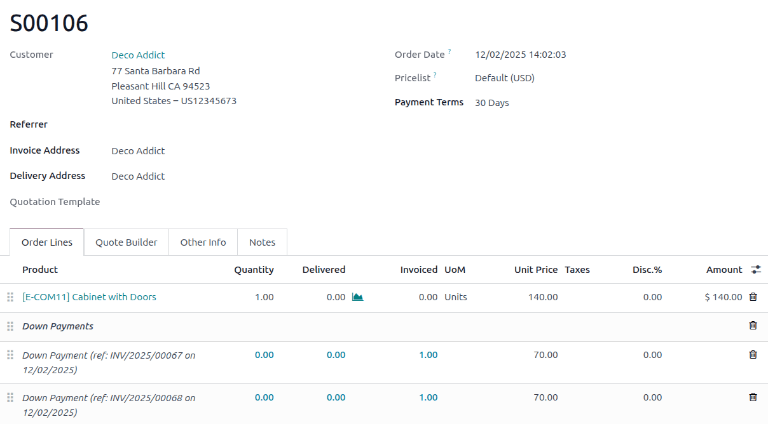
At this point, the flow is now complete. This flow is also possible with the Fixed amount down payment option.
Importante
If a down payment is used with a product that has a Delivered quantities invoicing policy, and the cost of the product exceeds the 50% down payment, a regular invoice is created. However, for products that cost less than the 50% down payment, the down payments will not be able to be deducted when it comes time to invoice the customer. This is because the product(s) would have to be delivered before creating the final invoice due to Nexovate not allowing negative totals for invoices. If nothing has been delivered, a Credit Note is created, which cancels the draft invoice that was created after the down payment.
To utilize the Credit Note option, the Inventory application must be installed in order to confirm the delivery. Otherwise, the delivered quantity can be entered manually directly on the sales order.
Example: requesting a 100% down payment
Requesting a 100% down payment is similar to requesting a 50% down payment, but with fewer steps.
Nota
A 100% down payment is not the same as a full payment of the sales order. A sales order paid through the regular invoice process will not allow any additional invoices to be generated and will not display the Create Invoice button on the Sales Order. Instead, following this example will cause the Create Invoice button to be displayed on the Sales Order. This is because the system expects another invoice to be created after the down payment to complete payment of the sales order.
Se us el producto Instalación de panel solar en este ejemplo.
To configure a 100% down payment, navigate to and add a
Customer to the quote. Next, click Add a product in the Order
Lines tab, and select the Solar Panel Installation product. Upon clicking the Confirm
button, the quotation turns into a sales order. At that point, an invoice can now be created by
clicking Create Invoice in the top-left corner. On the Create invoice(s)
pop-up window that appears, select Down payment (percentage), and type 100 in the
Down Payment field.
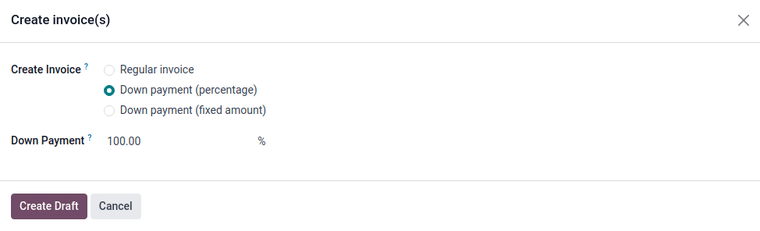
Next, click Create Draft Invoice to create an invoice draft. This will also bring the draft invoice into view, which includes the Down payment under the Down Payments section of the Invoice Lines tab. The invoice can now be confirmed and posted by clicking Confirm. Confirming the invoice changes the status from Draft to Posted. It also reveals a new series of buttons at the top of the page.
The payment can be registered by clicking the Pay button. This brings up the Pay pop-up form, which is auto-populated with the necessary information. When ready, click the Create Payment button.
After clicking Create Payment, Nexovate reveals the customer invoice, now with a green In Payment or Paid banner in the upper-right corner, depending on how the database has configured and if manual confirmation of payments is required. The process is now complete, and the 100% down payment has been successfully applied.
Modificación de la cuenta de ingresos en los anticipos
Importante
To change or adjust the income account attached to down payments, the Accounting app must be installed. With the Accounting app installed, the Accounting column becomes available on the draft invoice.
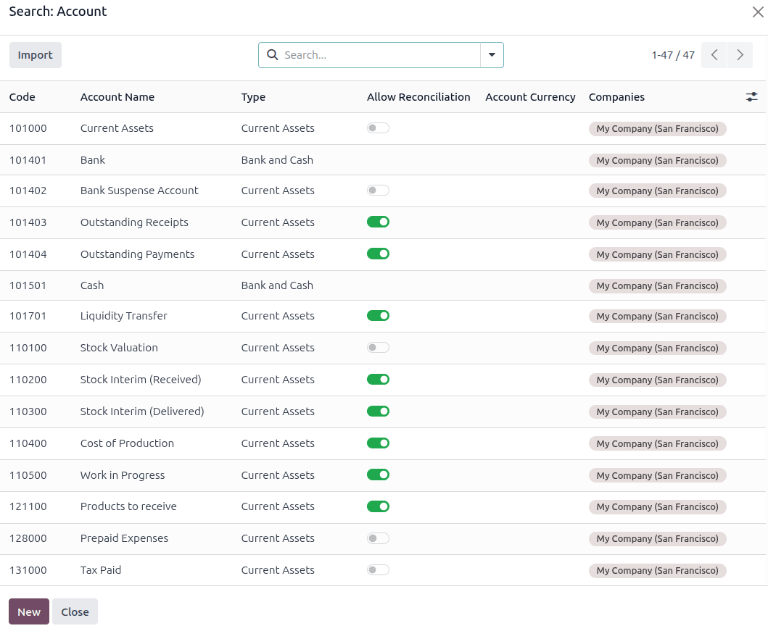
Navigate to the invoice to be modified by going to . Open an order, then click the Invoices smart button. Open an invoice, click the drop-down arrow on the entry in the Account column and click Search more… to bring up the Search: Account form. In this form, a different account can be chosen from the list of pre-existing accounts. A new account can also be created by clicking the New button.